Saving time and money is crucial for businesses especially if it’s a calling industry. For a moment, imagine yourself running a call center while having Zoho CRM in hand. Zoho CRM helps businesses manage their customer’s leads, sales graph and marketing campaigns in an easy way. It also helps them in closing more deals in an efficient manner. But with just a CRM tool you cannot run your call center business with full glory. You need to have a calling software or a calling system that will manage all your incoming and outgoing calls without any human error. This is where RingCentral comes in and plays its part. RingCentral is an all-in-one cloud application that manages voice and video calls, team messaging, online meetings and much more through one platform. Let us now observe what Zoho Integration with RingCentral can bring to the table.
Now that we know one cannot run a call center if he/she is not having an efficient CRM along with a calling tool. They both are equally important. For instance, if you already have Zoho CRM in your business but are looking for a platform that will tackle all the calling processes. Then integrate RingCentral with Zoho CRM. This integration will help you stay away from tons of manual channeling. This integration is cost-effective and it helps you connect seamlessly with your clients from anywhere. The set up for Zoho Integration with RingCentral is quite simple. You do not have to wait for days to make it work. But still, if you fear the process, you can get in touch with Techloyce. And we will make it work for you in no time.
One of the ways that we make it happen for our business clients is by enabling the integration with RingCentral with no coding at all. The following are the key steps for enabling integration.
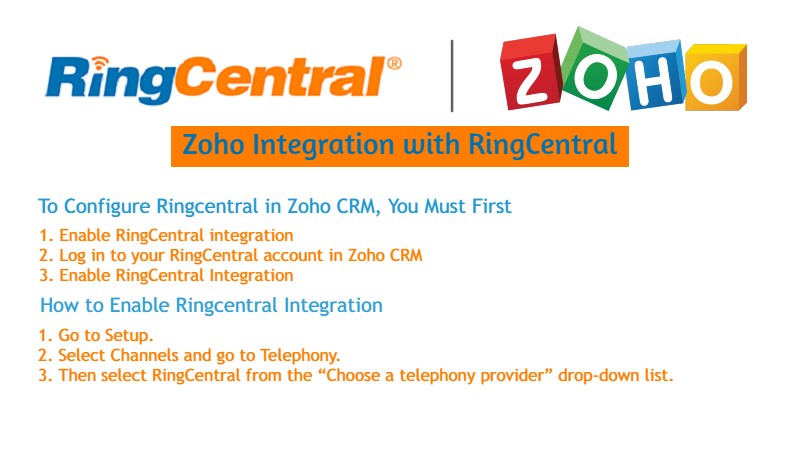
To Configure Ringcentral in Zoho CRM, You Must First
- Enable RingCentral integration.
- Log in to your RingCentral account in Zoho CRM.
- Enable RingCentral Integration.
How to Enable Ringcentral Integration
- Go to Setup.
- Select Channels and go to Telephony.
- Then select RingCentral from the “Choose a telephony provider” drop-down list.
Once You Integrate Ringcentral With Zoho CRM, You Can Do The Following Operations.
- When you receive an incoming call from or initiate an outgoing call to a CRM contact via RingCentral, you can see a business card view of the contact in Zoho CRM.
- All the calls dialed or received through RingCentral are automatically logged in Zoho CRM and you can easily view the call logs.
- You can also add follow-up activities at the end of every call made from Zoho CRM.
Once you have enabled RingCentral in Zoho CRM, you are ready to use this RingCentral integration. You can receive seamlessly receive calls, initiate outgoing calls and can also add follow-up activities from Zoho CRM.
 Zoho Integration with RingCentral